12 NetLogo language basics
In this session, we will learn more about NetLogo’s programming language. We will start with the basics to ease you in, in case you are not familiar with programming.
NOTE
In the explanation below, I use <UPPERCASE_TEXT> to represent positions in the code to be filled with the names of entities, variables, and other elements, depending on the context. For instance, <COLOR> <FRUIT> would represent many possible phrases, such as “red apple”, “brown kiwi”, etc. Beware that these fragments are only placeholders and are not NetLogo code.
For now, we will interact freely with the program, without a particular file or model. The code snippets shown here can sometimes be executed directly, but often won’t run without proper context.
12.1 Console interaction
As a preamble for anyone without previous experience with programming languages, the first thing you can do in NetLogo is give yourself a bit of encouragement. In the NetLogo interface, go to the bottom area named ‘Command Center’ and type the following in the empty field on the right of ‘observer>’ and press Enter:
You can do it!The console prints:
ERROR: Nothing named YOU has been defined. Oops! NetLogo still doesn’t know “you”. Or is it that it cannot understand you? Well, let us get you two properly introduced…
Before continuing, we should note: NetLogo does have its own vocabulary, containing what we will call “primitives”, to which we can add many more “words”, as long as we define them first using what NetLogo can understand. Without going into details now, just keep in mind that, in NetLogo language, special kinds of “words” are reporters, which are practical equivalents to values, and commands, which wrap the necessary steps to do something.
12.2 Entities
The (real) first thing one should learn about NetLogo, and most agent-based modelling systems, is that it handles mainly two types of entities/agents: patches, cells of a square grid, and turtles, which are proper “agents” (i.e., mobile, autonomous entities). Both entities have primitives (built-in, default properties), some of which processes in your model can modify. For example, you can’t change a patch’s position, but you can change its filling colour.
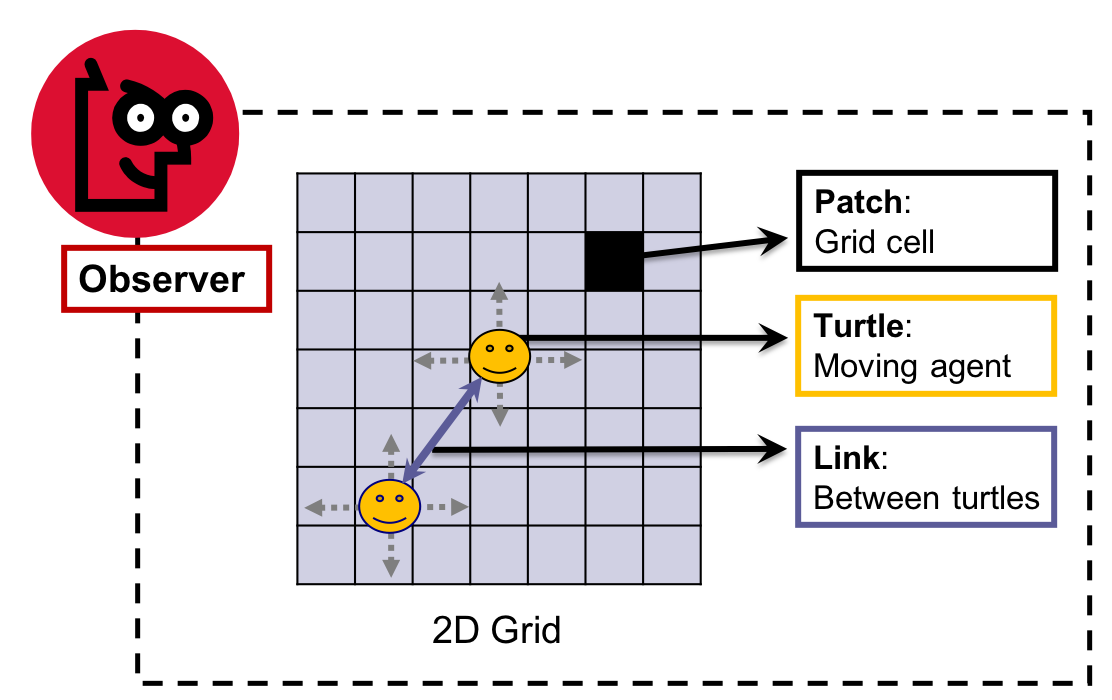
NetLogo world and entities (Figure 2 in Izquierdo et al. 2019)
As shown in the figure above, NetLogo also includes a third type of entity, links, which describes a connection between two turtles and thus has no specific spatial coordinates of its own. We will deal with links later on, but for now we focus on the other entities, which are more commonly used in models.
The term “turtle” comes from the base language from which NetLogo was developed, called “Logo” (in turn, an adaptation of another language, Lisp, where instructions can be given to one agent or robot (“turtle”) to move and draw a line graph. It was conceived to teach programming concepts – in fact, I had the opportunity to participate in a Logo session back in my school!

You can identify all patches and turtles individually through primitives. Turtles have a unique numerical identifier (who) assigned automatically when the turtle is created. Patches, in turn, have a unique combination of integer x and y coordinates in 2D space (pxcor and pycor), since they occupy a single position on a grid (see Grid). To reference a specific turtle, patch or link:
turtle <WHO_NUMBER>
patch <PXCOR> <PYCOR>
link <WHO_NUMBER> <WHO_NUMBER>
NetLogo allows you to define types of turtles as if it were a primitive, declaring its name as a breed:
breed [<BREED_1_NAME_PLURAL> <BREED_1_NAME_SINGULAR>]

breed [<BREED_2_NAME_PLURAL> <BREED_2_NAME_SINGULAR>]
For example:
breed [apples apple]

breed [pears pear]
We can then use the plural or singular form of the breed name directly, instead of referring to the generic turtles.
<BREED_1_NAME_SINGULAR> <WHO_NUMBER>Or:
pear 2This is useful, of course, when there is more than one breed to be defined, so that they are easily distinguished and intelligible in the code.
We can also refer to agents collectively as:
<BREED_1_NAME_PLURAL>pearsor randomly as:
one-of apples
one-of patches
The one-of primitive offers an easy way to randomly select one agent (turtles and patches) from all (or a subset of all) agents of a given type.
Last, keep in mind that turtles can be created and destroyed on the fly during simulations, while patches are created in the background upon initialisation, according to the model settings (e.g. grid dimensions), but never destroyed during simulation runs.
See NetLogo’s documentation on agents for further details (https://ccl.northwestern.edu/netlogo/docs/programming.html#agents).
12.3 Variables
The most fundamental elements of NetLogo, as in any programming language, are variables. To assign a value to a variable, we use the general syntax or code structure:
set <VARIABLE_NAME> <VALUE>For example:
set x 123Meaning “set the variable x to be the number 123”.
While variable names are fragments of contiguous text following a naming convention (e.g. my-variable, myVariable, my_variable, etc.), values can be of the following data types:
- Number (e.g.,
1,4.5,1E-6) - Boolean (i.e.,
true,false) - String (effectively text, but enclosed by quote marks: e.g.,
"1","my value") turtles,patches(i.e., NetLogo’s computation entities; see Entities)- AgentSet (a set of either
turtlesorpatches; see Entities) - List (a list enclosed in square brackets with values of any kind separated by spaces: e.g.,
[ "1" 1 false my-agents-bunch ["my value" true 4.5] ])
Before we assign a value to a variable, we must declare its scope and name, but not its data type, which is defined only when we assign a specific value. Variable declaration typically happens at the start of a model script, and its exact position depends on whether it is stored globally or inside entities. These types of declarations follow their own structures:
globals [ <GLOBAL_VARIABLE_NAME> ]

turtles-own [ <TURTLE_VARIABLE_NAME> ]

<BREED_1_NAME_PLURAL>-own
[
  <BREED_1_VARIABLE_1_NAME>
  <BREED_1_VARIABLE_2_NAME>
]

patches-own [ <PATCHES_VARIABLE_NAME> ]
For example:
globals [ x y ]

turtles-own [ weight ]

apples-own [ redness ]
As an exception to this general rule, variables can also be declared “locally” using the following syntax:
let <VARIABLE_NAME> <VALUE>For example:
let freshness 100As in other programming languages, a locally declared variable lives inside a temporary computation environment, such as a procedure (see below). Once the environment is closed, the variable is automatically discarded in the background.
12.4 Expressing equations
As we will see later, you can transform variable values in different ways, using different syntax depending on their type. The most straightforward case is performing basic arithmetic operations on numerical variables to express equations. These can be written using the special characters normally used in most programming languages (+, -, *, /, (, etc.):
set myVariable (2 + 2) * 10 / ((2 + 2) * 10)Notice that arithmetic symbols and numbers must be separated by spaces and that the order of operations can be structured using parentheses.
NetLogo allow line breaks, which can help you read expressions that are too long because they hold several operations. However, too many operations at a time can become hard to read and verify, even with line breaks. The best and safest practice to overcome this is to use parentheses abundantly to ensure the right sequence of operations is performed:
Valid
set myVariable (
  (
    (2 + 2) *
    10
  ) / (
    (2 + 2) *
    10
  )
)
Additionally, as proper equations, such expressions in NetLogo will also accept variable names representing their current value. Equations can then serve to create far-reaching dependencies between different parts of the model code:
set myVariable 2
set myOtherVariable 10

<...>

let myTemporaryVariable 2 * myVariable * myOtherVariable

set myVariable myTemporaryVariable / myTemporaryVariable
It’s usually better to keep operations on separate lines. However, be aware that NetLogo accepts sequential commands on the same line, as long as their syntax is correct:
set myVariable 2 set myOtherVariable 10 let myTemporaryVariable 2 * myVariable * myOtherVariable set myVariable myTemporaryVariable / myTemporaryVariableKnowing this is particularly useful whenever you want to test the outcome of a longer command sequence in NetLogo’s console (“Command Center”).
12.5 Logical operators
As with most programming languages, NetLogo can evaluate equalities and inequalities and return a Boolean value (true or false). The related logical operators are:
=: “equals”.
!=: “not equal to”.
>: “greater than”.
>=: “greater than or equal to”.
<: “less than”.
<=: “less than or equal to”.
For example, try:
1 >= 0100 >= 100 + 1You can also use equality and inequality operators with other data types, but be aware of the different implications. Some operations will return an error.
For example, you can compare Boolean values with = or !=:
true = falsebut not with quantitative comparisons:
true >= falseThe same applies to lists and agent sets, but not to strings or entities (turtles, patches, links):
Valid: check if the two lists are exactly the same.
[1 2 3] = [ 1 ]Invalid: a quantitative comparison between lists is not interpreted from this.
[1 2 3] > [ 1 ]Valid: checks if strings are exactly the same.
"apple" = "banana"Valid: compares the length of the strings.
"apple" >= "banana"Valid: checks if entities are the same (useful when entities are referenced indirectly by variables)
patch 0 0 != patch 1 1Valid, but not recommended: compares the internal IDs of entities, which express the creation order, which is often arbitrary.
turtle 0 < turtle 1
patch 0 0 > patch 1 1
Note that in other programming languages the equal sign might be reserved for setting the value of a variable. For example, "a" = "b" will return false in NetLogo, while in R it will assign the value “b” to a variable named “a”. By the way, to achieve the same in R, we should write "a" == "b".
12.6 Procedures
In NetLogo, any action we want to perform that is not manually typed in the console must be enclosed within a procedure that is declared in the model script (the text in the ‘Code’ tab in the user interface). Similar to ‘functions’ or ‘methods’ in other programming languages, a procedure is the code scripted inside the following structure:
to <PROCEDURE_NAME>
  <PROCEDURE_CODE>
end
Any procedure can be executed by typing <PROCEDURE_NAME> + Enter in the NetLogo console at the bottom of the ‘Interface’ tab. The “Hello World” program, a typical minimum exercise when learning a programming language, corresponds to the following procedure hello-world:
to hello-world
  print "Hello World!"
end
which generates the following “prints” in the console:
observer> hello-world
Hello World!
Procedures are particularly useful for grouping and enclosing a sequence of commands that are semantically connected for the programmer. For example, the following procedure declares a temporary (local) variable, assigns to it a number as a value, and prints it in the console:
to set-it-and-show-me
  let thisVariableOfMine 42
  print thisVariableOfMine
end
You can then use procedures elsewhere by writing their name (more complications to come). A procedure can be included as a step in another procedure:
to <PROCEDURE NAME>
  <PROCEDURE_1>
  <PROCEDURE_2>
  <PROCEDURE_3>
  ...
end
NetLogo’s interface editor lets us create buttons that execute one or more procedures (or even a snippet of ad hoc code). The interface system is quite straightforward. First, at the top of the interface tab, click “Add” and select an element type from the drop-down list. Click anywhere in the window below to place it. Select it with click-dragging or using the “Select” option in the right-click pop-up menu. You can edit the element by selecting “Edit”, also in the right-click pop-up menu. For questions about editing the interface tab, refer to NetLogo’s documentation (https://ccl.northwestern.edu/netlogo/docs/interfacetab.html).
12.7 Logic bifurcations: if and ifelse
The code exemplifies how to create conditional rules according to predefined general conditions using if/else statements, which in NetLogo can be written as
iforifelse:
if (<CONDITION_1_IS_TRUE>)
[
  <DO_ACTION_A>
]

ifelse (<CONDITION_2_IS_TRUE>)
[
  <DO_ACTION_B>
]
[
  <DO_ACTION_C>
]
12.8 Iterators (loops)
Using while, we can use a structure similar to bifurcations to iterate over the same code a number of times as long as a logical condition is true:
while [<CONDITION_1_IS_TRUE>]
[
  <DO_ACTION>
]
Notice the use of square brackets to surround the condition ([<CONDITION_1_IS_TRUE>]).
A variant is the primitive loop, which has no condition, meaning the action repeats forever until the code inside stops the flow explicitly (stop or report) or the user interrupts NetLogo.
loop
[
  <DO_SOMETHING>
]ALERT
Avoid using while or loop until you are confident in your code. A loop hidden inside your code that might go forever in a few cases can become a headache when performing simulation experiments in batches.
A more useful iterator is repeat, which will reiterate code a certain number of times:
repeat <NUMBER_OF_TIMES>
[
  <DO_SOMETHING>
]
You may quickly test it in the console with:
let counter 0 repeat 10 [ set counter counter + 1 ] print counterA special iterator commonly used in NetLogo is ask. You can ask all or any subset of entities to perform specific commands by following the structure:
ask <ENTITIES>
[
  <DO_SOMETHING>
]
Try this out in the Command Center:
ask patches [ set pcolor blue ]12.9 Entities with variables, logic operations, and procedures
Commands inside the ask structure can be both direct variable operations and procedures. For instance:
ask <BREED_1_NAME_PLURAL>
[
  set <BREED_1_VARIABLE_2> <VALUE>
  <PROCEDURE_1>
  <PROCEDURE_2>
  <PROCEDURE_3>
]
However, all variables referenced inside these structures must be properly scoped, following NetLogo’s syntax. For example, an agent is only able to access a variable in another agent if it uses the following kind of structure:
ask <BREED_1_NAME_PLURAL>
[
  print [<BREED_1_VARIABLE_2>] of <BREED_2_NAME_SINGULAR> <WHO_NUMBER>
]
You can select a subset of any set of entities with logic clauses checked separately for each entity. For example, to get all agents with a certain numeric property greater than a given threshold:
<TYPE_NAME_PLURAL> with [ <VARIABLE_NAME_1> > <THRESHOLD> ]When operating from inside an ask command, we can also make sure to filter out the agent currently performing the call by using the primitive other:
ask <BREED_1_NAME_PLURAL>
[
  ask other <BREED_1_NAME_PLURAL>
  [
    print <WHO_NUMBER>
  ]
]
All this can be combined to form quite complex rules of behaviour, yet keeping itself generally readable:
to celebrate-birthday

  ask people
  [
    if (today = my-birthday)
    [
      ask other people with [presents > 0]
      [
        give-present
      ]
    ]
  ]

end
12.10 Grid (world)
Spend some time understanding the grid structure and associated syntax. It is recommended to consult the “settings” pop-up window in the “interface tab”:
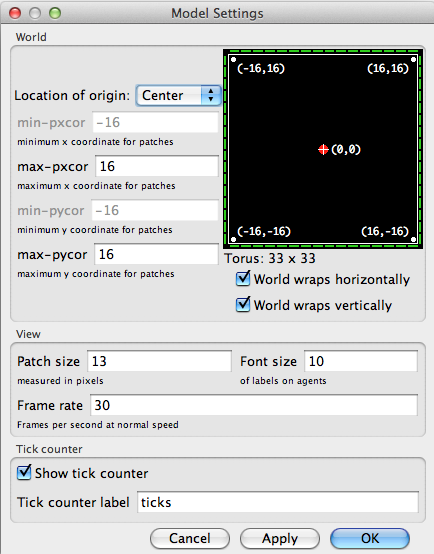
The settings pop-up window in NetLogo
The default configuration is a 33x33 grid with the position (0,0) at the centre. You can easily edit both dimensions and the centre for each model. You can also specify agents’ behaviour at the borders by ticking the “wrap” options. Wrapping the world limits means that, for instance, under the default setting mentioned above, the position (-16,0) is adjacent to (16,0). In the console, we can “ask” the patch at (-16,0) to print its distance to the patch at (16,0), using the primitive function distance (https://ccl.northwestern.edu/netlogo/docs/dictionary.html#distance):
observer> ask patch -16 0 [ print distance patch 16 0 ]
1
Wrapping one dimension represents a cylindrical surface while wrapping two depicts a strange toroidal object (Doughnut!). Although this aspect is relatively hidden among the options, it can matter if spatial relations play any part in a model. So if you want your grid to represent a geographical map, make sure to unpick the wrapping features.
12.11 Commenting code
Annotations or comments (i.e., text that should be ignored when executing the code) can be added to the code by using the structure:
<CODE>
; <FREE_TEXT>
<CODE>
or
<CODE> ; <FREE_TEXT>12.12 Dictionary
One of the most useful resources in NetLogo’s documentation is the dictionary, which you can access from the “Help” menu. This is true at any moment throughout your learning curve, even when you know all primitives and built-in functions by heart. Moreover, all documentation comes with every copy of NetLogo, so it is fully available offline.
The dictionary is particularly useful whenever you are learning by example, as in our case. For instance, regarding the earlier mention of distance, you could have searched it in the dictionary directly. Whenever you find yourself reading NetLogo code with violet or blue words that you do not understand, make it a habit to search them in NetLogo’s dictionary.
For more information, consult NetLogo Programming Guide.